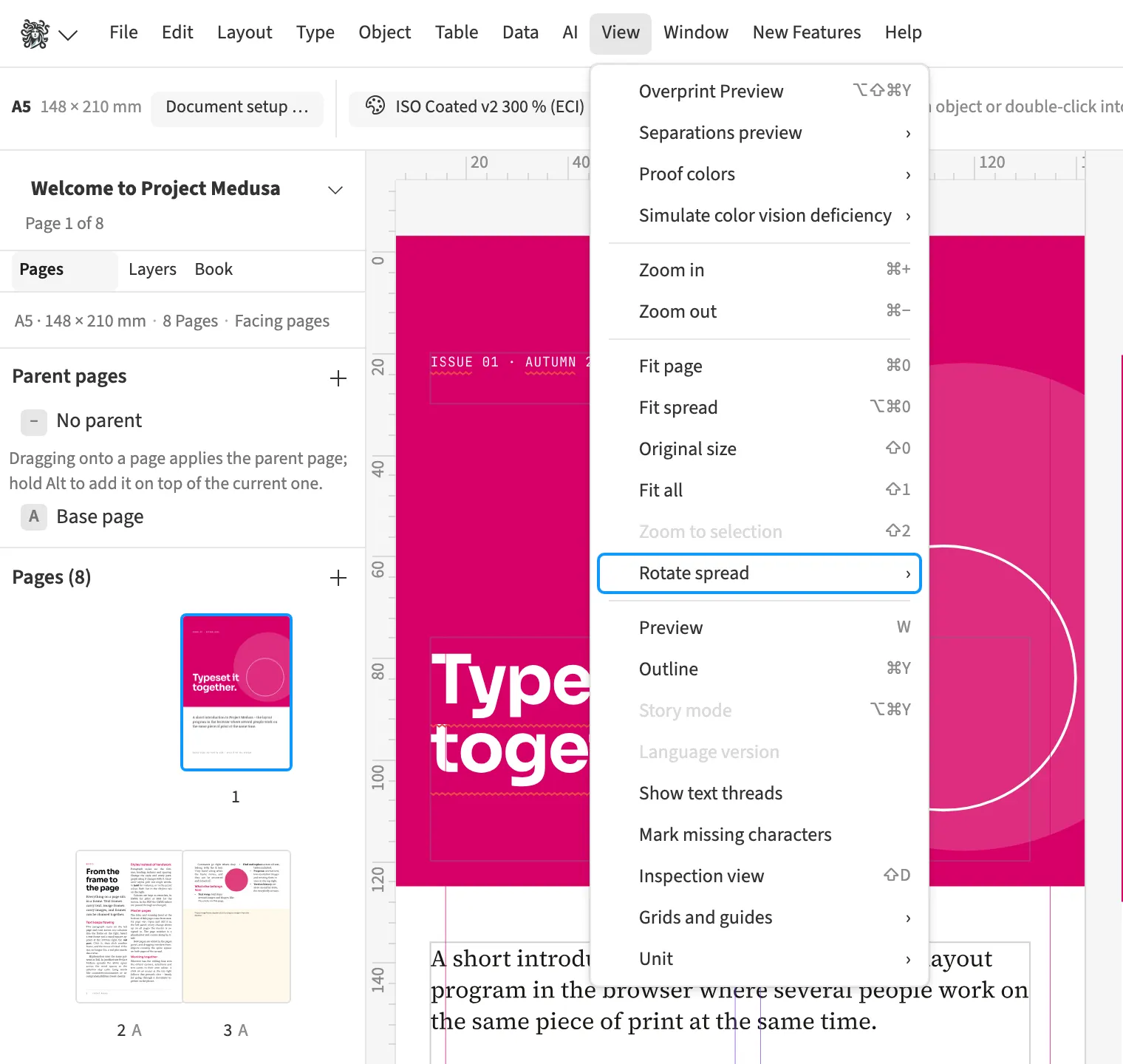
Where to find itView › Rotate spread
You can rotate a spread by 90°, 180° or 270° for editing. This helps when working on sideways text or a rotated packaging panel. The spread stays centred in the view and the zoom is retained. Rotation affects only the view of that spread. Document geometry and output stay unchanged, so you do not need to reset the view before exporting a PDF.
How to do it
- Display the spread you want.
- Choose View › Rotate spread and the rotation you need.
- Choose Clear rotation in the same submenu to restore the normal view.
Limits
View rotation is unavailable while editing master pages.