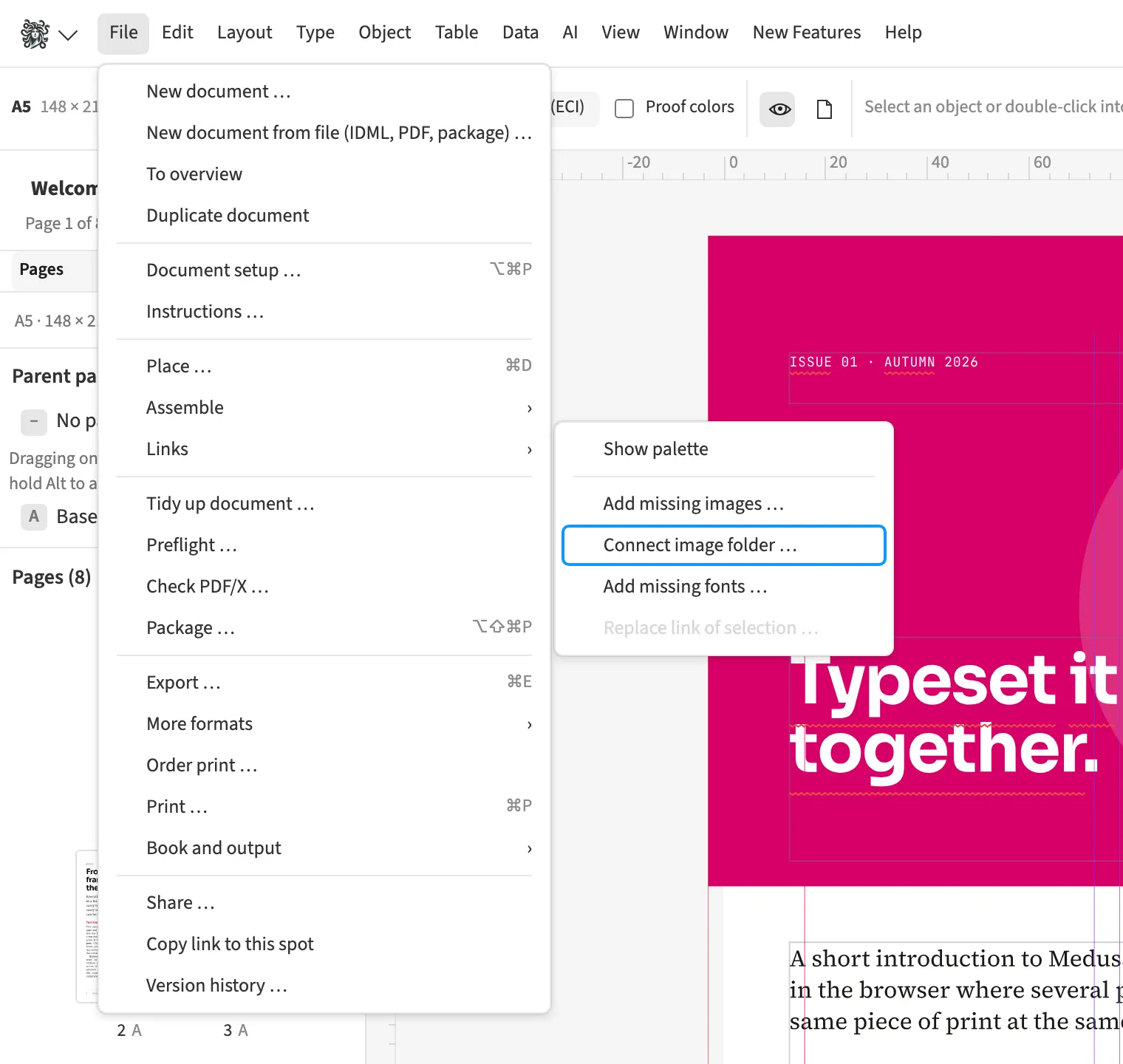
Where to find itFile › Links › Connect image folder …
You connect a folder with the image files of the document. Medusa looks for the placed images there by file name and marks those whose file is newer than the one in the layout. One click swaps in the new version, crop and scale stay. It checks when you open the document, when you ask it to, and when you come back to the Medusa window from another program, but not continuously in the background.
How to do it
- Open «File › Links › Connect image folder …» and pick the folder.
- Edit an image in your image editor and save it in the folder.
- Return to the Medusa window; changed images carry a notice.
- Swap in the new version with «Update».
Tips
- Without a connected folder, «Add missing images …» stays the way to go.
Limits
This works only in Chrome and Edge. The folder stays on this computer, other people do not see it, and Medusa asks for permission again in every session. Only the file's modification date is compared, and only the folder itself is searched, not subfolders.
Compared
Update linked images
- Medusa partlya copy in the document; a connected image folder (Chrome, Edge) flags newer files, one click replaces them
- Adobe InDesign availablelinks panel, edit original
- QuarkXPress available
- Affinity Studio available
Vendor sources, as of 25.9.2026 · Full comparison with all sources